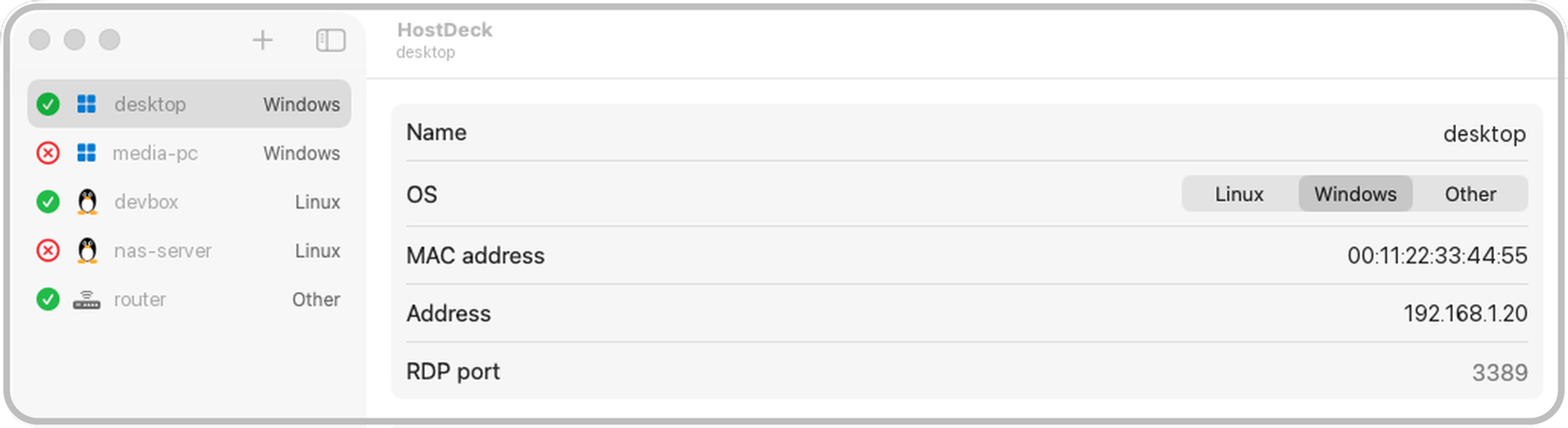
I’ve woken the machines in my home lab for a while now with a small Python script called wake, which sends a Wake-on-LAN packet to whichever host I name. It does the job, although it doesn’t tell me whether the machine has actually come up, so I usually follow it with a few pings before I try to connect.
One Sunday afternoon I asked Claude Code to turn the script into a proper Mac app, and I pointed it at an older Linux version of the script that waits for the host to answer and then opens an SSH session. A couple of hours later I had HostDeck, which keeps an eye on everything on my network and wakes it or connects to it when I ask.
I think this is quite a shift in what any of us can do, because when the tool you want doesn’t exist (or isn’t quite right), you can now describe it in plain English and have a working version the same afternoon, which is something I come back to at the end.
How it came together
The first version did little more than the script with a window around it, and everything after that came from using it and asking for changes in plain English, a few minutes at a time, whilst Claude Code wrote the Swift and rebuilt the app.
Most of the changes came from the way I actually use these machines. The Windows ones now get a real RDP connection request, which tells me that Remote Desktop is listening (an open port on its own doesn’t quite prove that), and the Linux ones get an SSH login with my key. When I added my MikroTik router, which has no shell as such, the login test needed a small change so that it works without running a command on the device.
A few things only became obvious once the app was in front of me. I spent a while trying to get it to open an RDP session with the credentials saved in Microsoft’s Windows App, which turned out not to be possible from another app, so HostDeck now tells me when a Windows machine is ready and starts the RDP app when I ask it to. By the end of it, the app was doing quite a lot more than waking things, so it got a new name and an icon, and this page became its documentation.
Getting HostDeck
The source is on GitHub at edrandall-dev/hostdeck if you’d like to try it. You’ll need macOS 14 or later and the Xcode command line tools (xcode-select --install sorts those out), and the build script compiles the app on your own Mac and copies it to ~/Applications:
git clone https://github.com/edrandall-dev/hostdeck.git
cd hostdeck
./build.sh
Using HostDeck
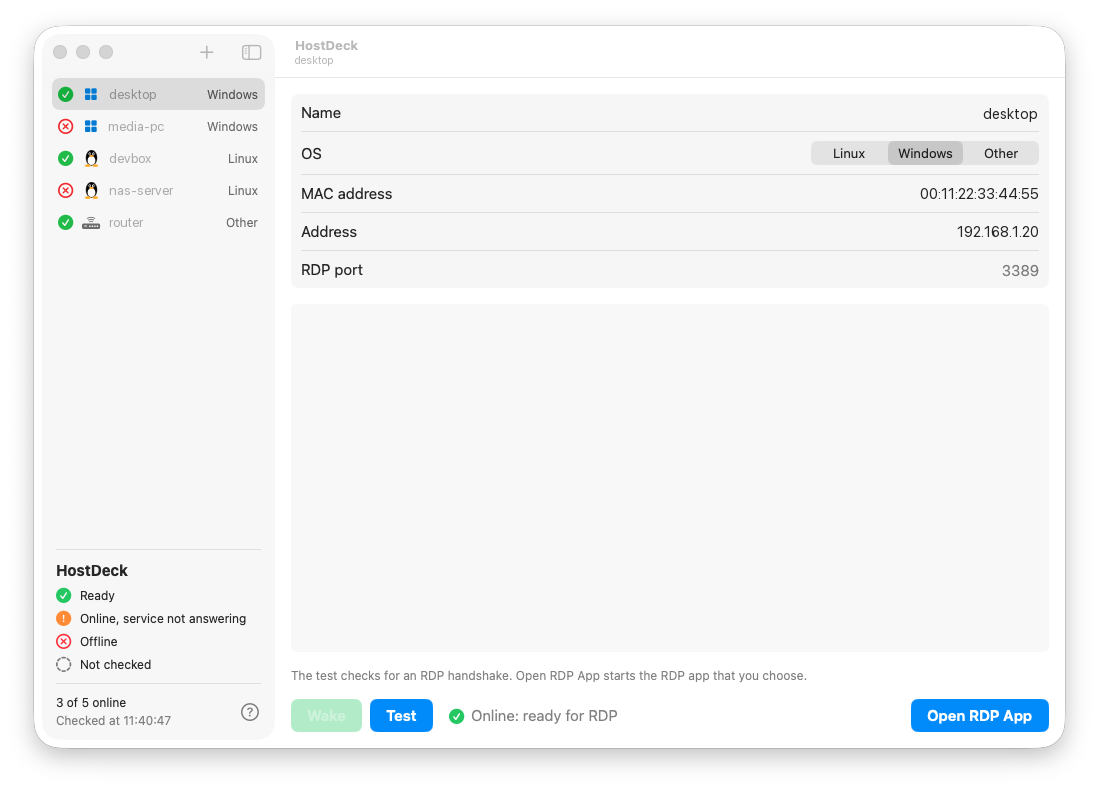
HostDeck keeps a list of hosts down the left of the window, each with a status symbol and an icon for its type. It checks every host every fifteen seconds, and again as soon as you select one, so the status in the list is always fairly current.
Host types
Each host is one of three types, and the type decides which test HostDeck runs and which buttons it shows:
| Type | Service test | Connect button |
|---|---|---|
| Windows | Ping, then port 3389, then an RDP connection request | Open RDP App, which starts the RDP app you choose |
| Linux | Ping, then port 22, then an SSH login with your key | Connect, which opens SSH in Terminal |
| Other | Ping, then port 22, then an SSH login with your key | Connect, which opens SSH in Terminal |
Linux and Other hosts have a Wake-on-LAN switch, which hides the MAC address and the wake buttons for a device such as a router that is always on. Windows hosts always have Wake-on-LAN, since waking them is the main reason they are in the list.
Buttons
| Button | What it does |
|---|---|
| Wake | Sends the magic packet five times, then waits for each check to pass, for up to three minutes |
| Wake and Connect | Does the same as Wake, then opens an SSH session once the host is ready (Linux and Other only) |
| Test | Runs each check once against the host as it is now, with no wake packet |
| Connect | Opens SSH in a larger Terminal tab, using the host’s key if one is set |
| Open RDP App | Shows a menu of the RDP apps on the Mac and starts the one you pick |
HostDeck fades the Wake buttons while a host replies to ping, because there is nothing to wake, and every step of each run appears in the log above the buttons.
Status symbols
| Symbol | Meaning |
|---|---|
| Filled circle with a tick | The host replies to ping and its service port is open |
| Filled circle with an exclamation mark | The host replies to ping, but the service port does not answer |
| Empty circle with a cross | The host does not reply to ping |
| Dashed circle | The host has no address, or HostDeck has not checked it yet |
Things to know
Windows blocks ping by default, so enable the inbound firewall rule “File and Printer Sharing (Echo Request - ICMPv4-In)” on each Windows machine, or run Enable-NetFirewallRule -Name FPS-ICMP4-ERQ-In in an administrator PowerShell, otherwise the first check never passes.
HostDeck doesn’t store passwords, because the login test uses your SSH key only, and if the key doesn’t log you in, ssh asks for the password in Terminal in the usual way.
macOS asks for Local Network permission the first time HostDeck runs, and the app can’t send packets or test hosts until you allow it. If a wake packet doesn’t reach a host, I’d suggest setting your subnet broadcast address (for example 192.168.1.255) in HostDeck’s Settings.
What I think this means for paid apps
HostDeck is the sort of utility I’d once have bought from the App Store for £9.99, and probably put up with, because it would have been close enough to what I wanted without quite fitting the way my network is set up. When a tool like that takes an afternoon to describe, the decision to buy one looks quite different, because I can have something that fits my own setup exactly and change it whenever it annoys me, which I think will make life fairly difficult for anyone selling small, single-purpose apps.
I don’t think an app like this changes much for SaaS on its own, and the argument I made in the case for SaaS still holds for the large platforms, where much of the value is in shared data and a vendor who keeps it all running. The same approach in the hands of a team is probably a different matter, though, since the small per-seat tools that a team pays for to run one narrow workflow (a tracker or an intake form, for example) are exactly the kind of thing that people can now describe and build for themselves.
The responsibility stays with me, of course, and the governance points I wrote about earlier this year apply to a home lab utility as much as anything else. I decided that HostDeck should store no passwords and use SSH keys only, since it runs on my network however quickly the code was written.
If you’re thinking about what this means for your own products or teams, I’d be happy to compare notes, so do get in touch.